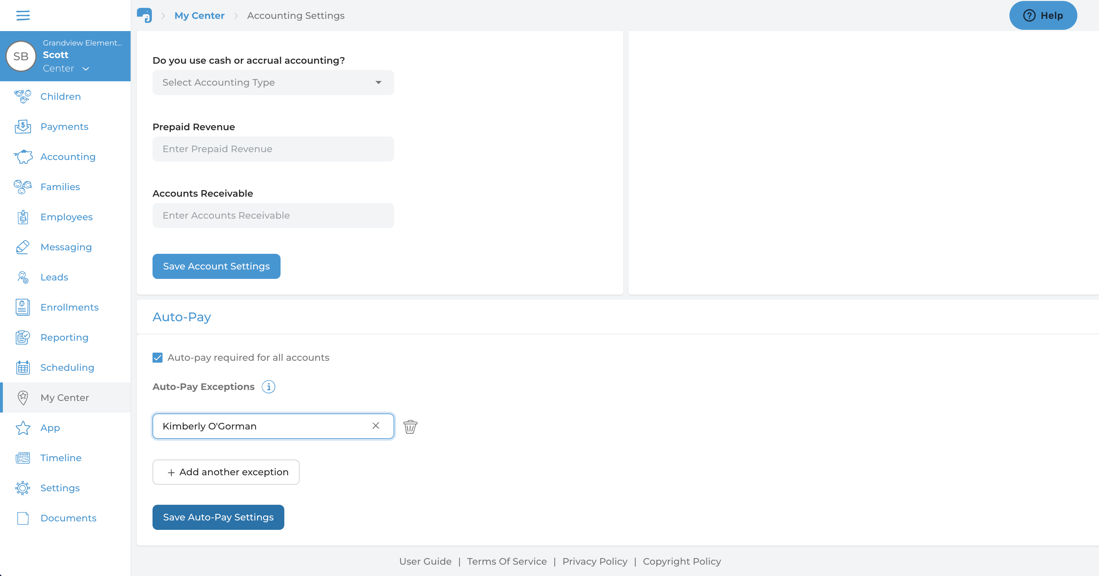
Please see the directions below to manage the required autopay option and exception list for required autoplay.
Required Autopay:
- On the center web portal, navigate to My Center > Accounting Settings
- To turn on/off required autoplay, ensure ‘Auto-pay Required for All Accounts’ has been enabled
- Once the setting is turned on or off, ensure you select ‘Save Auto-Pay Settings’ to complete the enabling/disabling of the option
Managing Exception List for Required Autopay:
- With required autoplay enabled on the center web portal, navigate to My Center > Accounting Settings
- Click on the "Add Another Exception" button
- Select the person you would like to add from the drop-down list
- If you selected the incorrect family, click the "x" on the right of the drop-down list to be able to choose another person instead.
- If you would like to remove a family from the exception list, click the trash can icon to the right of their name
- Click "Save Auto-Pay Settings" once finished